 Tetrate Global Load BalancerVersion: Latest
Troubleshooting Global Load Balancer
In this chapter, you'll learn what information to gather, and the tests to conduct to troubleshoot the Tetrate GSLB solution.
This documentation covers the specifics of the Tetrate GSLB solution, relating to the DNS configuration created in response to the health of Gateways in various clusters and regions. It does not cover issues relating to the data path through the Gateways to upstream Gateways and services; use the Tetrate Service Bridge troubleshooting procedures to diagnose issues with traffic.
Step 1: Document and Check your Intended Tetrate-GSLB configuration
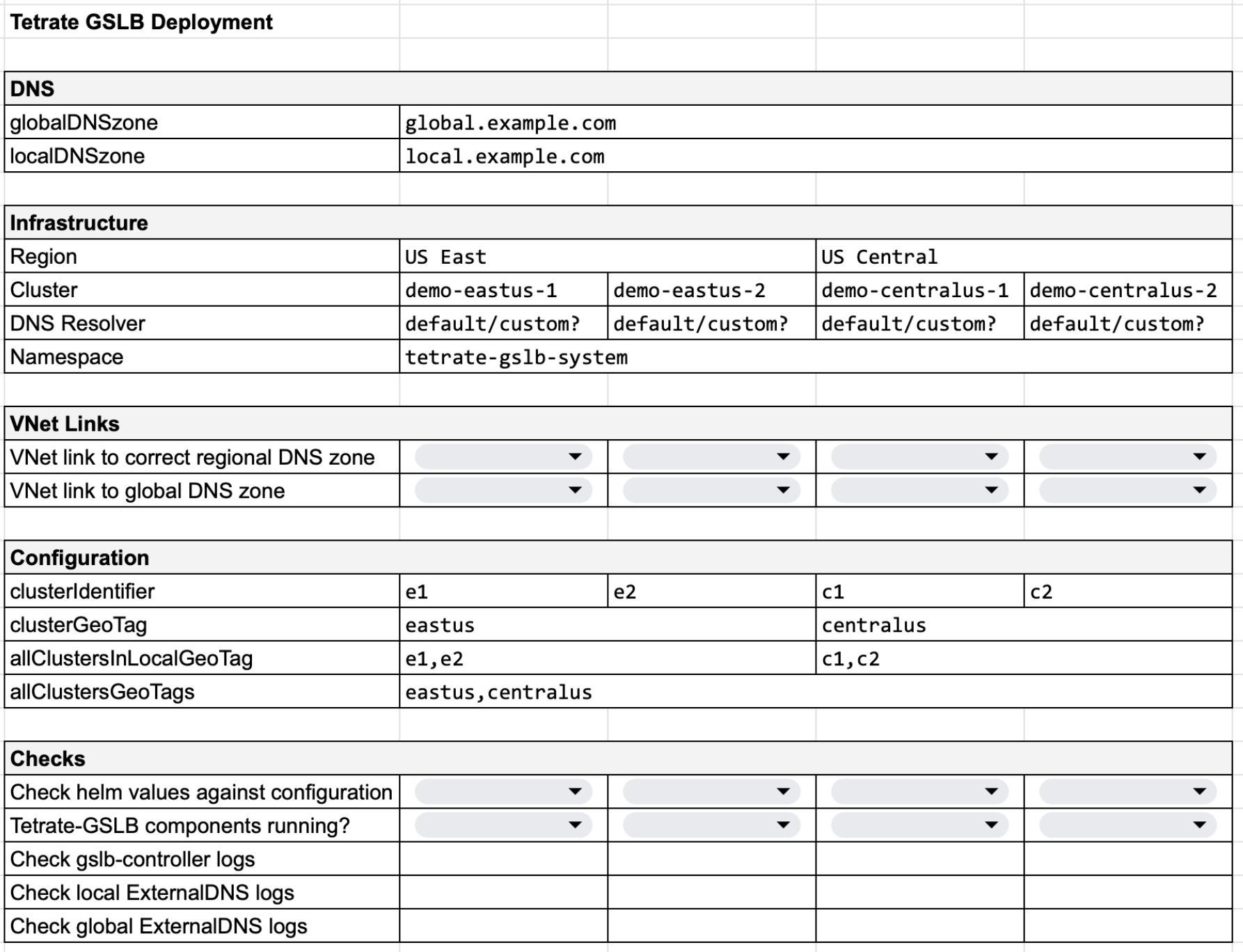
Use the table above as a template to document your intended Tetrate GSLB configuration.
Common Issues
- DNS Resolver: If you use a non-standard DNS resolver in your clusters, verify that all clusters are configured appropriately
- VNet Links: Verify that each cluster has the correct VNet links to the regional and global zones. Manually deploy a test DNS entry in each zone if necessary to check
- Helm Values: Use
helm get values tetrate-gslb -n tetrate-gslb-systemagainst each cluster to determine the helm values in each deployed release - Components Running?: Use
kubectl get pods -n tetrate-gslb-system; expect to see three services (tetrate-gslb 2/2 ready, tetrate-gslb-external-dns-global 1/1 ready, tetrate-gslb-external-dns-local 1/1 ready) - Check Logs and Status: Use the following:
kubectl describe pod -n tetrate-gslb-system -l=app.kubernetes.io/name=tetrate-gslb
kubectl logs -n tetrate-gslb-system -l=app.kubernetes.io/name=tetrate-gslb -c manager

kubectl describe pod -n tetrate-gslb-system -l=app.kubernetes.io/name=external-dns-global
kubectl logs -n tetrate-gslb-system -l=app.kubernetes.io/name=external-dns-global

kubectl describe pod -n tetrate-gslb-system -l=app.kubernetes.io/name=external-dns-local
kubectl logs -n tetrate-gslb-system -l=app.kubernetes.io/name=external-dns-local
Step 2: Document and Check your Intended Gateway configuration
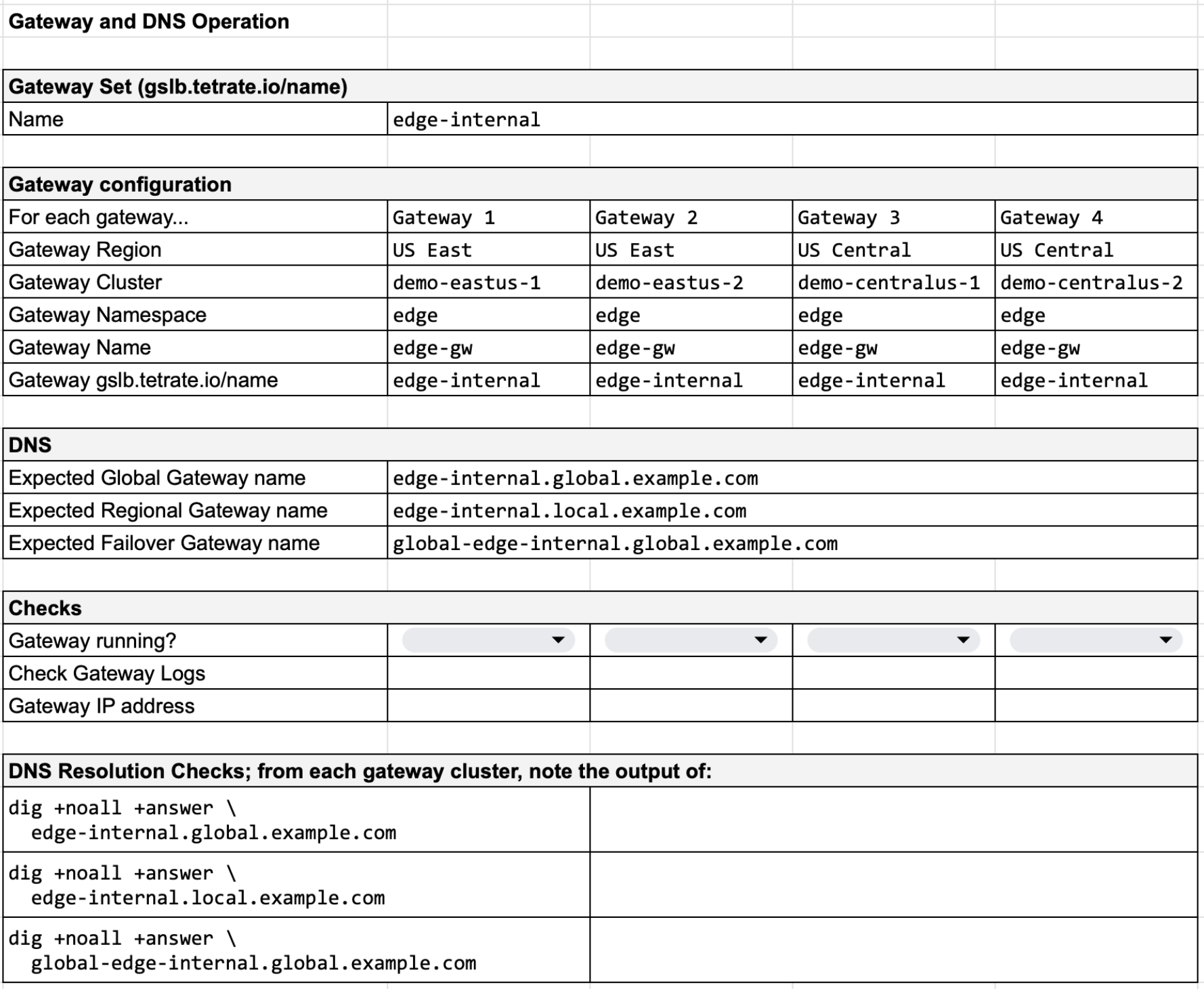
Use the table above as a template to document your intended Tetrate Gateway and DNS configuration.
Common Issues
- gslb.tetrate.io/name: Verify that each Gateway Service has the correct value, using
kubectl get svc -n edge edge-gw -o jsonpath="{.metadata.annotations}". Note that the service is created automatically from the Gateway install where you defined the name. - DNS names: verify that the expected DNS names have been provisioned by the Tetrate External DNS services into your DNS zones
- Gateway Running: Use
kubectl get pods -n edge; expect to see your gateway pods running - Gateway Logs: Use
kubectl describe pod -n edge -l=app=edge-gwandkubectl logs -n edge -l=app=edge-gwto check status and logs - Gateway IP Address: Use
kubectl get svc -n edge edge-gwto determine the External IP address for the Gateway
Additional Tests
Reset the GSLB Controller shared state
The Tetrate GSLB controller maintains shared state using DNS TXT records in the regional and global private DNS zones.
It is safe to delete all DNS TXT records at any point. The Tetrate GSLB solution is robust to DNS failures and will re-create the required records. Note that you may see a short period of instability while the TXT records are recreated.
Verify each Edge Gateway Service
On each Edge Gateway cluster, verify that the Edge Gateway service is correctly annotated with a consistent value of gslb.tetrate.io/name:
kubectl get svc -n edge edge-gw -o jsonpath="{.metadata.annotations}"
# {"gslb.tetrate.io/name":"edge-internal"}
If the annotation is missing or is incorrect, then check how the corresponding Ingress (Edge) Gateway was deployed. The annotation is provided in the spec.kubeSpec.service.annotations stanza:
spec:
  kubeSpec:
    service:
      type: LoadBalancer
      annotations:
        gslb.tetrate.io/name: edge-internal
Make a note of the IP address exposed for the Edge Gateway service:
kubectl -n edge get service edge-gw -o jsonpath="{.status.loadBalancer.ingress[0]['hostname','ip']}"
Verify that the Private DNS Zones are correctly linked
On your test client machine, verify that you can resolve the globalDNSzone and localDNSzone values:
dig global.example.com
You should receive an SOA response pointing to azureprivatedns.net or similar.
; <<>> DiG 9.18.18-0ubuntu0.22.04.2-Ubuntu <<>> global.example.com
;; global options: +cmd
;; Got answer:
;; ->>HEADER<<- opcode: QUERY, status: NOERROR, id: 31160
;; flags: qr rd ra; QUERY: 1, ANSWER: 0, AUTHORITY: 1, ADDITIONAL: 1

;; OPT PSEUDOSECTION:
; EDNS: version: 0, flags:; udp: 65494
;; QUESTION SECTION:
;global.example.com.		IN	A

;; AUTHORITY SECTION:
global.example.com.	10	IN	SOA	azureprivatedns.net. azureprivatedns-host.microsoft.com. 1 3600 300 2419200 10

;; Query time: 4 msec
;; SERVER: 127.0.0.53#53(127.0.0.53) (UDP)
;; WHEN: Tue May 07 16:17:21 UTC 2024
;; MSG SIZE  rcvd: 133
If you receive a response pointing to a public DNS server (or similar error), this is an indication that the Zones are not linked.
Verify the Global Private DNS Zone
Attempt to resolve the Global Gateway and Failover Gateway names:
# should alias to the CNAME edge-internal.local.example.com

dig -t cname edge-internal.global.example.com
# ;; ANSWER SECTION:
# edge-internal.global.example.com. 5 IN	CNAME	edge-internal.local.example.com.


# should return all of the IPs of all healthy gateways

dig global-edge-internal.global.example.com
# ;; ANSWER SECTION:
# global-edge-internal.global.example.com. 5 IN A	20.232.235.7
# global-edge-internal.global.example.com. 5 IN A	20.242.239.35
# global-edge-internal.global.example.com. 5 IN A	52.230.239.11
# global-edge-internal.global.example.com. 5 IN A	52.230.239.36
Any failures or unexpected results indicate an issue with the Tetrate GSLB installation or configuration.
Verify the Regional Private DNS Zone
Attempt to resolve the Regional Gateway name:
dig edge-internal.local.example.com

# ;; ANSWER SECTION:
# edge-internal.local.example.com. 5 IN	A	20.232.235.7
# edge-internal.local.example.com. 5 IN	A	20.242.239.35
You should receive the IP addresses of the healthy gateways in the Regional Private DNS Zone that is linked to your test environment.
Any failures or unexpected results indicate an issue with the Tetrate GSLB installation or configuration.
Verify the Friendly Name DNS alias
Attempt to resolve the friendly name for your service, such as httpbin.example.com:
# should alias to the CNAME edge-internal.global.example.com

dig -t cname httpbin.example.com
# ;; ANSWER SECTION:
# httpbin.example.com. 5 IN	CNAME	edge-internal.global.example.com.
Finally, try a full DNS request; you should receive the IP addresses of the healthy gateways in the Regional Private DNS Zone that is linked to your test environment:
Verify that Traffic is Working
Finally, if everything appears to be correctly operating, verify that you can access the target service through each Edge Gateway:
TARGET=httpbin.example.com

for IP in `dig +noall +answer global-edge-internal.global.example.com | cut -f 2` ; do \
    echo ... \
    curl -s -v -o /dev/null --connect-to $TARGET:80:$IP "http://${TARGET}/" ; \
done
Any failures at this stage most likely point to an error in the Gateway configuration for the target service.
Is the Tetrate GSLB software installed and running correctly?
On each Edge Gateway cluster, check the presence of the tetrate-gslb-controller pod, and the two external-dns-controller pods:
kubectl get pods -n tetrate-gslb-system
# NAME                                                READY   STATUS    RESTARTS   AGE
# tetrate-gslb-69c748fd96-5sqbs                       1/1     Running   0          76s
# tetrate-gslb-external-dns-global-5c678b7979-9npq6   2/2     Running   0          76s
# tetrate-gslb-external-dns-local-5b49cffdfc-bmkbc    2/2     Running   0          76s
If the pods fail to start, the status will indicate the most likely reason:
- Error ImagePullBackOff implies either an error in the secrets or registry configuration, meaning the image cannot be pulled
- Error CrashLoopBackOff implies the image cannot start; perhaps an error in the authentication or service account configuration
Is the Tetrate GSLB configuration correct?
From each cluster, obtain the configuration provided at install time:
helm get values -n tetrate-gslb-system tetrate-gslb
Ensure the values are correct; one helpful step is to diff pairs of values from within a region, and pairs between regions. Pay particular attention to:
- The tags and identifiers that identify each Edge Gateway cluster within its region and globally
- The globalDNSZone and localDNSZone values (common to all clusters)
- The domainFilters for each External DNS installation (common to all clusters)
Has the Tetrate GSLB Controller created the necessary CRs?
Ensure that the tetrate-gslb-controller successfully creates the necessary Custom Resources (CRs) for external-dns. These resources are created in the Edge Gateway namespace (e.g. edge), for the named service (e.g. edge-gw):
kubectl get dnsendpoint -A
# NAMESPACE   NAME                         AGE
# edge        global-a-edge-gw             5d18h
# edge        global-cname-edge-gw         5d18h
# edge        global-heartbeat-edge-gw     5d18h
# edge        regional-a-edge-gw           5d18h
# edge        regional-heartbeat-edge-gw   5d18h
Check the values of each of the CRs, for example:
kubectl get dnsendpoint global-a-edge-gw -n edge -o json | jq '.spec.endpoints'
# [
#   {
#     "dnsName": "global-edge-internal.global.example.com",
#     "recordTTL": 5,
#     "recordType": "A",
#     "targets": [
#       "20.232.235.7",
#       "20.242.239.35",
#       "52.230.239.11",
#       "52.230.239.36"
#     ]
#   }
# ]
Check the timestamps in the heartbeat TXT records. The values must correspond to the cluster and region identifiers:
$ dig -t txt health-001-e1.local.example.com

# ;; ANSWER SECTION:
# health-001-e1.local.example.com. 1 IN	TXT	"2024-08-14T14:49:26Z"

$ dig -t txt health-001-eastus.global.example.com

# ;; ANSWER SECTION:
# health-001-eastus.global.example.com. 1	IN TXT	"2024-08-14T14:54:39Z"
The heartbeat times should change frequently, typically every 10 seconds. If they stop changing, this indicates a fault in the tetrate-gslb-controller software.
Note: The data in the CRs and DNS TXT records is internal to the Tetrate GSLB solution. The contents and format may change from release-to-release.
Check the logs from the Tetrate software
By now, you should have narrowed down the location of the error to one or more clusters, and to either the tetrate-gslb-controller or one of the external-dns-controller installations.
Check the logs from each of the suspect software instances, looking for error messages that may indicate the presence of a fault:
kubectl logs -n tetrate-gslb-system -l app.kubernetes.io/name=tetrate-gslb -c manager

kubectl logs -n tetrate-gslb-system -l app.kubernetes.io/name=external-dns-global

kubectl logs -n tetrate-gslb-system -l app.kubernetes.io/name=external-dns-local
Contact Tetrate Support
If you are unable to diagnose and resolve the problem, please contact Tetrate Technical Support or your Tetrate account manager for assistance.