 Tetrate Patch ServiceVersion: alpha
Connecting an AWS Account
Instead of connecting clusters one at a time, connect the account they live in: Tetrate Patch Service discovers every Kubernetes cluster in a connected AWS account and lets you install the agent across the ones you pick. Setting the connection up is one action on your side, creating an IAM role from a published template, and it is revocable at any time by deleting that role.
How Cloud Connections Work
A cloud connection is a standing grant you create, not a credential you hand over. You create one IAM role in your account from Tetrate's published template, and the Patch Service connects by assuming that role with an external ID unique to your connection.
There is no secret to paste into the console and none kept on Tetrate's side: the connection is confirmed by using the role, and the external ID requirement means that even knowing your account number gets an attacker nothing.
A connection is about one account, so connecting the same account again edits the existing connection rather than duplicating it. Discovery covers every region unless you list the regions to scan.
Discovery and Installation Are Separate Grants
The role template separates what it allows into three tiers, and the Permission information disclosure in the connect form spells each of them out:
- Discovering your clusters is read-only: listing the clusters in the account and reading enough about each to show it to you.
- Installing the agent for you requires cluster administration. That access is taken immediately before an install you requested and given back immediately after, and both ends of that window appear in your audit log.
- Showing your account's name is read-only and optional, and buys nothing operational: it only lets the console list the account by name instead of by number.
You can grant discovery, decline the other two, and still see your whole fleet in the console; installs then happen through the CLI instead, and you can name the account yourself.
Connecting an Account
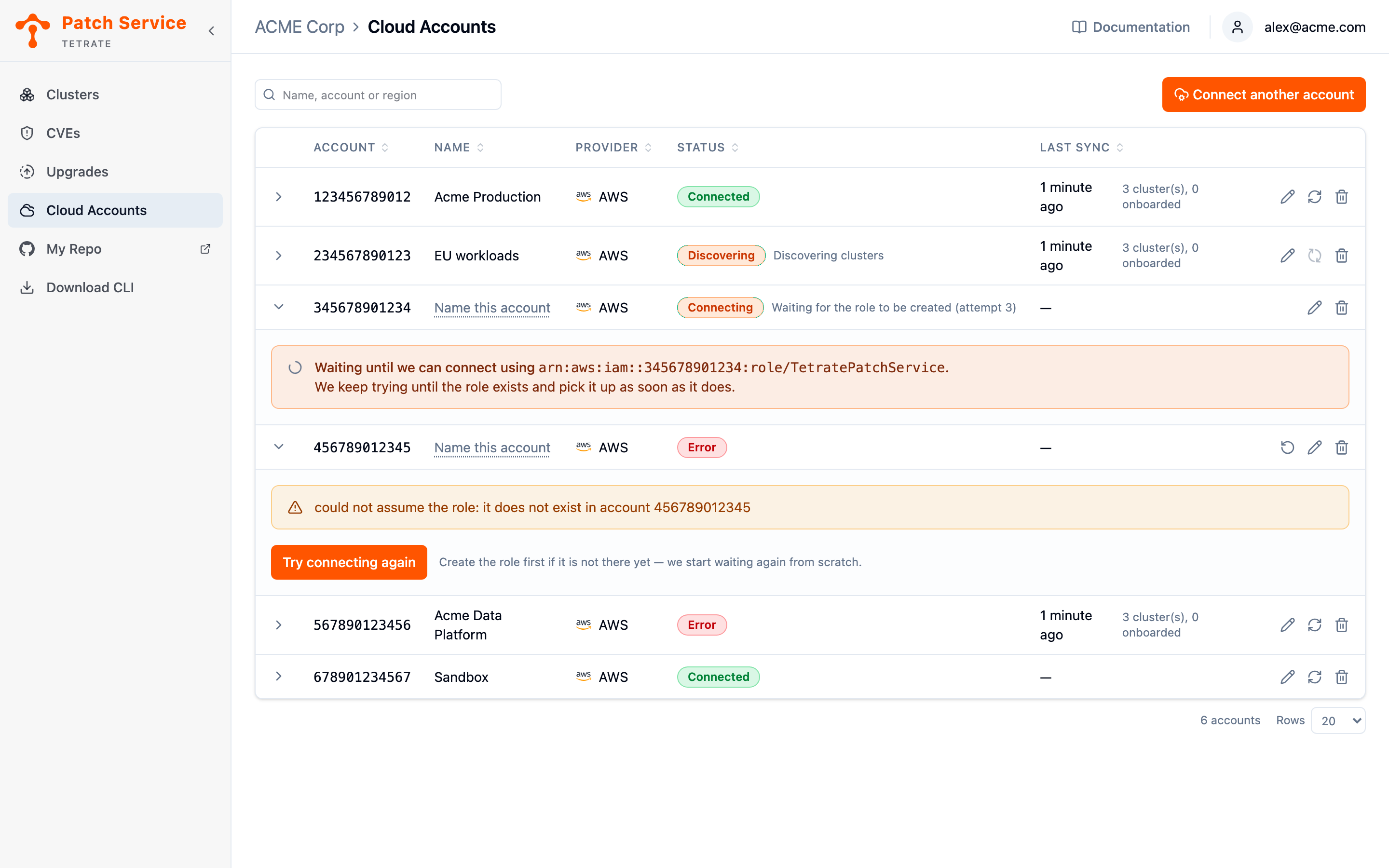
- Open Cloud Accounts in the sidebar and click Connect a cloud account (or Connect another account if one is already connected). The same form opens from Connect from cloud account in the Clusters view.
- Choose Amazon Web Services. Google Cloud and Microsoft Azure are shown as coming soon.
- Enter your 12-digit AWS account ID, and optionally the Regions to scan. Leaving regions empty scans everywhere your account operates.
- Create the role. Run CloudFormation opens the AWS console with the stack prefilled; Create the stack manually shows equivalent AWS CLI and Terraform snippets for accounts where CloudFormation is not how things are done. The summary above the buttons shows exactly what will exist afterwards: the stack name, the role's ARN, and the external ID it requires.
The form warns about one sharp edge: the Run CloudFormation button opens whichever AWS account your browser is signed in to. If your organization signs in through a separate landing account, switch to the target account first or use the manual path; the template refuses to create the role in the wrong account.
Monitoring Connection Status
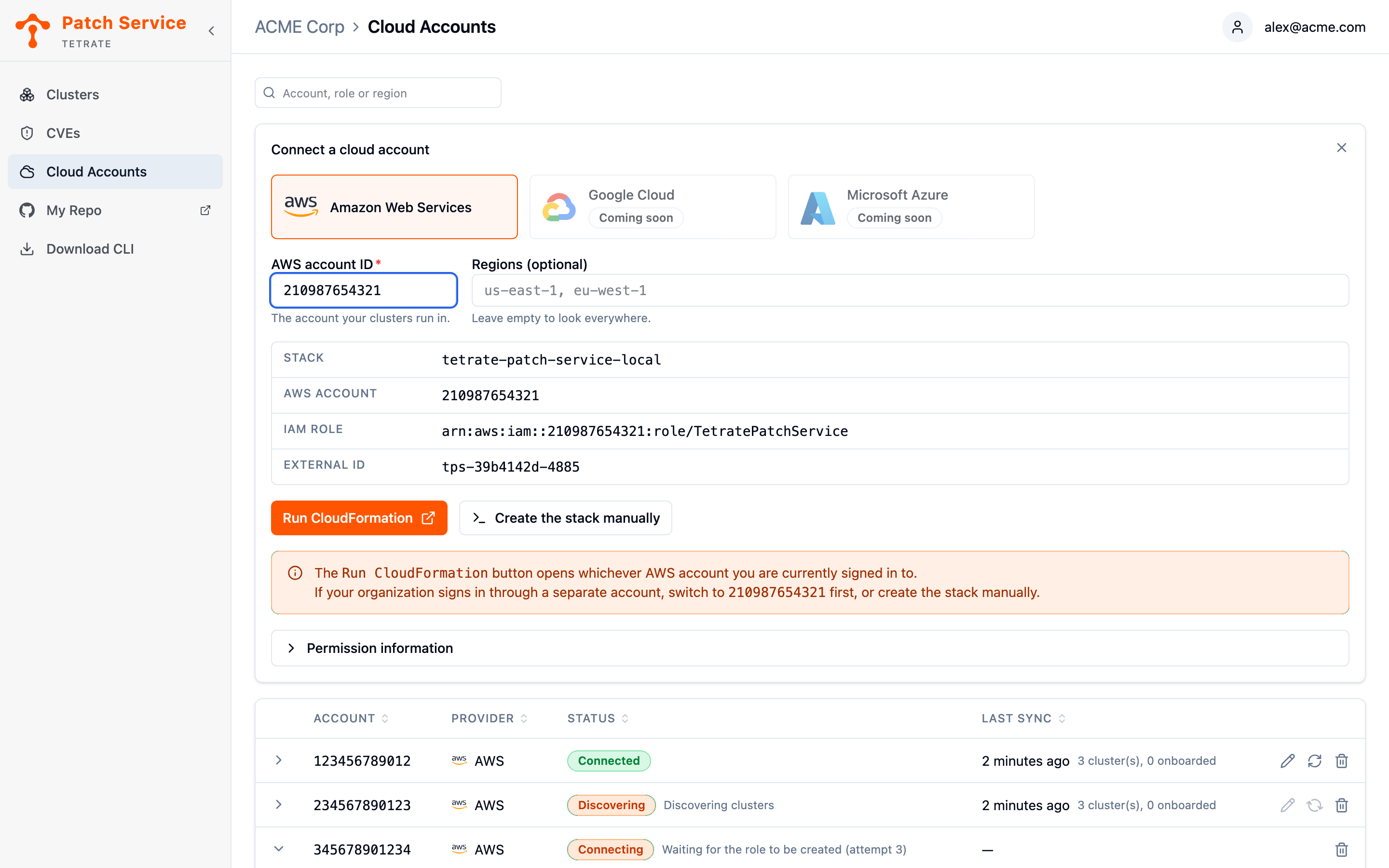
The connection starts working the moment the role exists; until then it waits, retrying with the attempt count shown, so creating the stack a few minutes later is fine. The connections table shows Account, Name, Provider, Status, and Last sync, with the discovered and onboarded cluster counts beside the sync time:
- Connecting means the Patch Service is waiting for the role to become assumable, and the row shows which attempt it is on.
- Discovering means the role works and regions are being scanned for clusters.
- Connected means discovery completed; expand the row to review the fleet.
- Error carries its reason in the row, for example a role that does not exist in the account or one region denying access while the others scanned fine. Fix the cause and use the row's retry or resync actions.
Discovery repeats on a schedule after that, and the row's resync action runs it on demand. Each row also carries actions to edit the account and to disconnect.
Naming an Account
Twelve-digit account numbers are hard to tell apart once you have several, so each connection also carries a Name.
The name is filled in for you when the role allows the account's own name to be read. Where it does not, the cell reads Name this account: click it and the row opens on the field. You can also rename a connection whose name was discovered, and your own name wins over the one the cloud reports. Naming needs nothing about the connection to be working, which is deliberate, since an account stuck in an error is one you especially want to tell apart from the others.
The account number stays the column the eye lands on. It is what your cloud console, your role's trust policy, and your colleagues all use; the name is only what tells six of them apart.
The search box above the table matches any part of an account ID, a name, or a scanned region, which is what tells two connections apart once you have more than a handful. A renamed account is still found under the name the cloud gave it, so a rename hides that name from the page rather than from the search. The provider is not searched, since every connection is an AWS one today. The box stays on screen when nothing matches, because clearing it is the way back to the full list.
Disconnecting an Account
Disconnecting stops discovery and any pending work for that account, and it uninstalls nothing: agents already running in the account's clusters keep reporting. To close the door on Tetrate's side entirely, also delete the role in your account; nothing on the Patch Service side holds a copy of anything.
Next Steps
- Install across your fleet once discovery lists your clusters and you are ready to pick targets.
- View your clusters to watch discovered clusters start reporting after their installs.
- Connect clusters with the CLI for clusters the connection cannot reach, such as ones with private API endpoints.