 Tetrate Patch ServiceVersion: alpha
Installing Across Your Fleet
A connected cloud account lists every Kubernetes cluster it holds; installing across the fleet is picking clusters, picking what each should run, and one click. Each install runs as its own job, so one unreachable cluster never blocks the rest of the fleet.
Reviewing Discovered Clusters
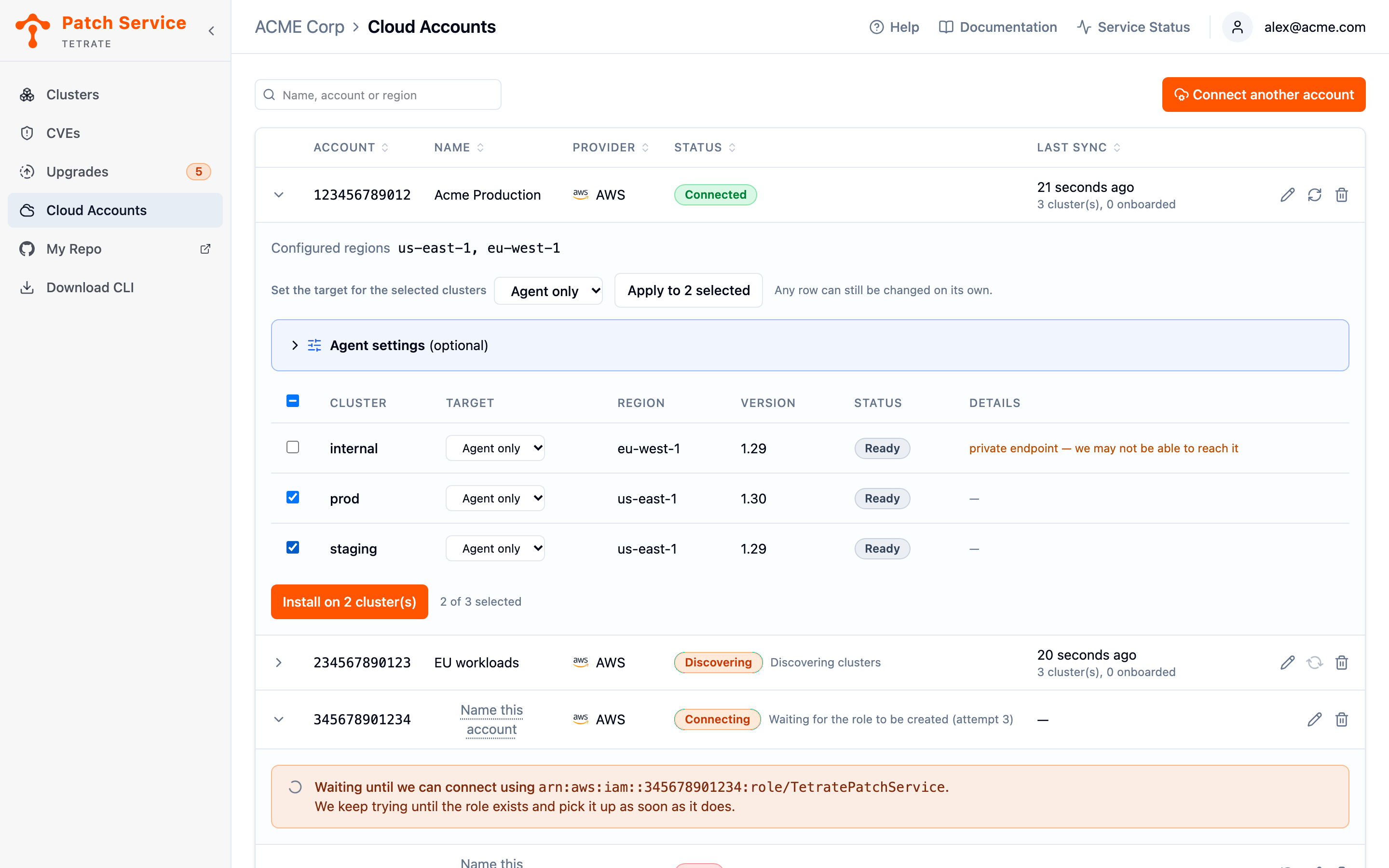
Expand a connected account in Cloud Accounts to see its discovered clusters. The table shows each cluster's name, its Region, its Kubernetes Version, and its Status, with anything that needs your attention spelled out under Details:
- A cluster that is already reporting is marked as onboarded, so you cannot install over it by accident. It can still be given a product, or a new agent configuration as described in Choosing Agent Settings.
- A cluster whose API endpoint is private carries a warning that the Patch Service may not be able to reach it; the CLI path below covers those.
- After an install attempt, the status shows how it went, from Installing through Onboarded or Install failed with the failure's reason.
Discovered clusters are matched against already-connected ones by their cloud identity, not their name, so a cluster you connected earlier with the CLI shows up as onboarded rather than as a stranger to install over.
Choosing What Each Cluster Gets
Every selected cluster carries its own install target in the Target column: Agent only, or one of your products with an environment, shown as pairs like teg (dev).
A managed target installs the agent alongside the product, not instead of it. Agent only means visibility: the cluster reports what it runs. A product target additionally installs that product's managed data plane in the cluster. The products offered are the ones your repository was seeded with, not a catalog to browse.
Nothing is preselected, because installing is a change to a cluster: you tick the clusters to include. To set many rows at once, use Set the target for the selected clusters above the table and click Apply to N selected; any row can still be changed on its own afterwards.
Choosing Agent Settings
The Agent settings panel between the target picker and the table sets how the agent is configured on every cluster you install Agent only on: the namespaces it watches, and the registry mirrors you pull Tetrate's images through. Leave it folded for the default install. The fields are the same as on the Connect Cluster page, and Configuring the Agent explains each one. While a field holds an invalid value, the panel reads (needs attention) and nothing can be installed.
A product target ignores these settings: the agent installed with a product takes its namespaces and mirrors from agent/values-customer.yaml in your GitOps repository.
Filling in the panel also makes onboarded clusters selectable again, with Agent only as their target and a note that selecting one reinstalls the agent with the settings above. That is how to change the settings of a cluster connected earlier. The reinstall replaces the agent's values with the settings in the panel and installs the current agent version, so values you set on that cluster with Helm are not kept. Clearing the panel takes those clusters back off the list.
Installing
- Tick the clusters to install on, and set each row's Target.
- Click Install on N cluster(s). The count in the label is the commitment: exactly those clusters are touched, one job per cluster.
- Watch each row's status move. A finished row reads Onboarded, and the cluster starts appearing in the Clusters view with its first report.
Installation takes cluster administration in the target cluster immediately before the work and gives it back immediately after, as described in Connecting an AWS Account. A row that fails shows Install failed with the reason and offers a retry on that row alone; retrying is safe because onboarding is idempotent end to end.
Each installed cluster is registered under the name its cloud account knows it by, reduced to a DNS-1123 label. Names stay unique within your organization, so a discovered cluster whose name is already held is registered under a name derived from it; its source line in the Clusters view names the account and region it came from.
What the Newly Connected Clusters Report
Nothing stands between a finished install and a useful cluster. The agent finds Tetrate's workloads by itself: it reports the Deployments and DaemonSets running an image Tetrate publishes, matched against the public release catalog, so there is nothing to label on any of the clusters you just installed on. Your own applications are never reported, whatever namespace they run in.
A cluster that finishes its install and then reports nothing is running no images the agent recognizes, most often because its Tetrate images come from your own mirror. Name the mirror under Agent settings and select the cluster again; Discovering Images from a Private Registry explains how to work out the value.
An agent installed as Agent only is a Helm release in the cluster, and nothing upgrades it for you afterwards; see Upgrading the Agent.
Clusters That Cannot Be Reached
A cluster whose API endpoint is private cannot be reached from Tetrate at all. The failure says so plainly, a routing problem rather than an authorization one, and the fix is to connect that cluster with the tetrate CLI from inside your network, as described in Connecting Clusters. Once it reports, discovery recognizes it by its cloud identity and marks it onboarded like any other.
Next Steps
- View your clusters as installs finish and the new clusters' first snapshots arrive.
- Monitor vulnerabilities once the new clusters' images are scanned and their exposure appears.
- Connect clusters with the CLI for the private-endpoint clusters the account connection cannot reach.