 Tetrate Patch ServiceVersion: alpha
Connecting Clusters
Three paths connect a cluster to Tetrate Patch Service, and all of them drive the same onboarding flow: register the cluster, apply its secrets, install the agent. The tetrate CLI is the primary path, the Connect Cluster page's manual steps are the copy-paste fallback, and cloud account discovery, covered in its own section, connects every cluster in an account at once. Whichever path you take, the result is identical: one agent reporting which Tetrate images the cluster runs, with nothing to label afterwards. For what the agent watches and how it reports, see Clusters and the Agent.
Choosing a Connection Method
| Situation | Method that fits |
|---|---|
| You have a terminal with kubeconfig access to one or a few clusters | The CLI: run tetrate onboard and pick the clusters from its plan, as described below. |
| The machine that reaches the cluster cannot run the CLI | The Manual connection steps on the Connect Cluster page, described below. |
| You want every cluster in a cloud account | Connect an AWS account and install across the discovered fleet. |
Connecting Multiple Clusters with the CLI
Run the CLI with no flags to connect any number of clusters in one pass. If you do not have it yet, install the Tetrate CLI first.
tetrate onboard
The command plans over every context in your kubeconfig before touching anything, and the plan lists every cluster it found, including the ones it does not touch and why: a cluster missing from the list would read as a cluster that does not exist. Only the current context starts selected, so confirming the plan unchanged connects exactly the cluster a bare command targets; press a to select every cluster.
CLUSTER           ACTION
payments-prod     onboard
payments-staging  skip  (already onboarded)
checkout-prod     onboard  (registered but has not reported yet)
kind-dev          onboard

3 to onboard, 1 already onboarded
The checklist repeats the plan as choices. A cluster the plan will not act on is listed with a dash instead of a checkbox, so you can see it without being able to pick it, and each row keeps the reason the plan gave:
  Select clusters to onboard
  ↑↓/jk move · space toggles · a all · enter confirms · q aborts

> [x] payments-prod
   -  payments-staging  already onboarded
  [ ] checkout-prod  registered but has not reported yet
  [ ] kind-dev

  1 of 3 selected
A cluster whose kube context spells out its full cloud identifier is registered under a shorter derived name, and the plan says so before you confirm: the table grows a REGISTER AS column, and the checklist row reads arn:aws:eks:us-east-1:123456789012:cluster/edge → edge. Both columns disappear when every cluster keeps its own name.
Each cluster then runs its own numbered block, and the report at the end names what happened to each one:
Connecting cluster payments-prod

  [1/4] Checking cluster payments-prod… ✓
  [2/4] Preparing cluster payments-prod… ✓
  [3/4] Applying agent configuration… ✓
  [4/4] Installing Tetrate agent… ✓

Connecting cluster checkout-prod

  [1/4] Checking cluster checkout-prod… ✓
  [2/4] Preparing cluster checkout-prod… ✓
  [3/4] Applying agent configuration… ✓
  [4/4] Installing Tetrate agent… ✓

Connecting cluster kind-dev

  [1/4] Checking cluster kind-dev… ✗

Succeeded on 2 cluster(s).
  ✔ payments-prod
  ✔ checkout-prod

Failed on 1 cluster(s):
  ✗ kind-dev: dial tcp 127.0.0.1:52791: connect: connection refused
Two flags narrow or automate the run:
| Flag | What it changes |
|---|---|
--kubecontext <context> | Targets that one context and skips the selection prompt. |
--yes | Runs unattended, with no prompts. |
Four more flags choose how the agent is configured; see Configuring the Agent.
For example, to connect one specific cluster and nothing else:
tetrate onboard --kubecontext <context>
One cluster failing never stops the rest, and the command exits non-zero when any did. The closing report lists what connected, under which name, what failed, and repeats anything the plan declined, so a decline that scrolled past cannot pass for a connected cluster. Only a cluster that reports counts as connected: a registered cluster that stays silent keeps an empty Last report and is shown as never reported, not hidden.
Configuring the Agent
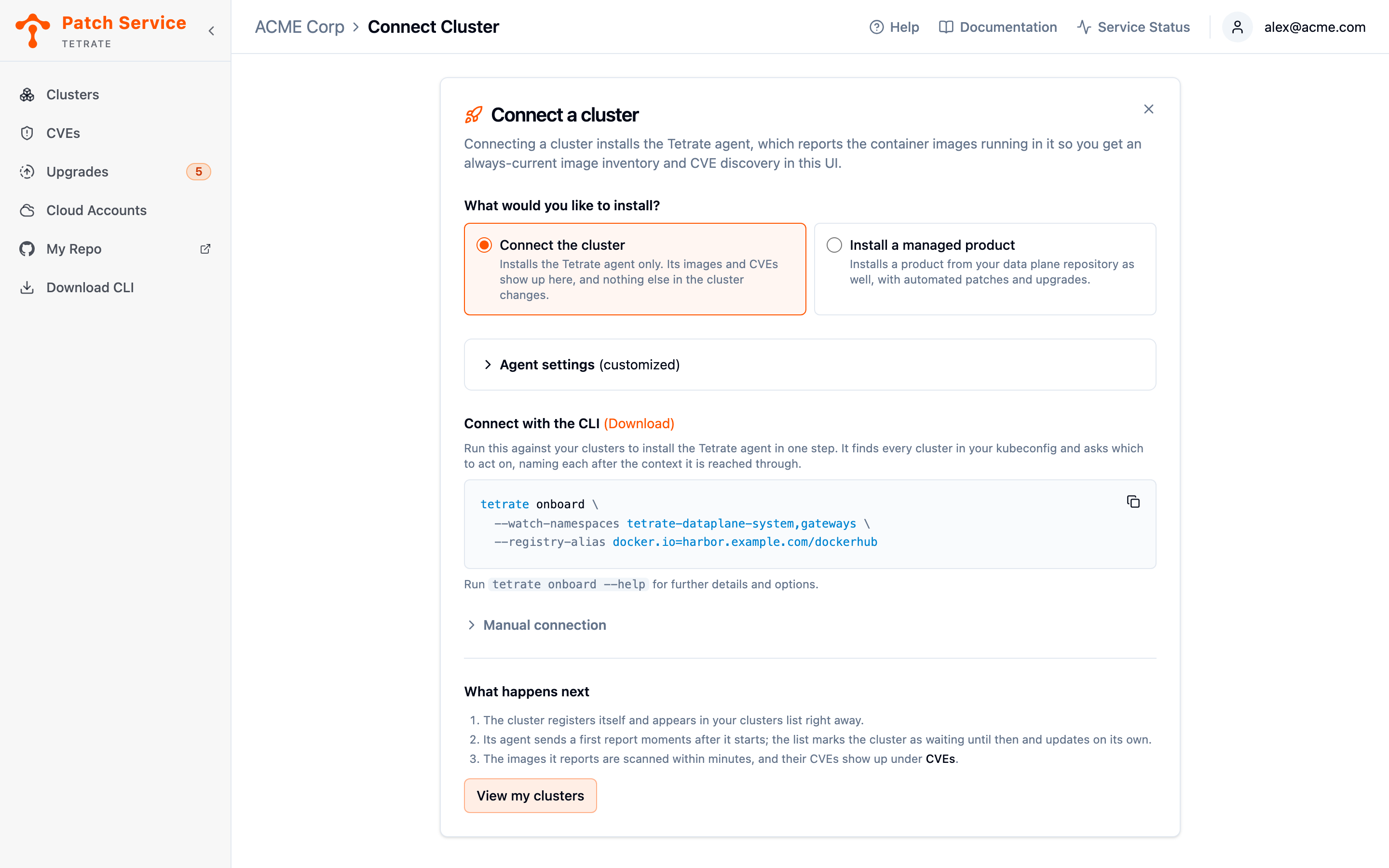
By default the agent watches the namespaces a Tetrate install uses, tetrate-dataplane-system, envoy-gateway-system, and envoy-ai-gateway-system, and recognizes Tetrate images only where Tetrate publishes them. If your Tetrate workloads run elsewhere, or your clusters pull Tetrate's images through your own registry, choose the agent's settings when you connect, so there is nothing to change afterwards:
| Flag | What it changes |
|---|---|
--watch-namespaces <ns>,<ns> | The namespaces the agent watches, instead of the default ones. Comma-separated or repeated. |
--watch-all-namespaces | Watches every namespace in the cluster. Cannot be combined with --watch-namespaces. |
--registry-alias <registry>=<mirror prefix> | A registry mirror you pull Tetrate's images through, such as docker.io=registry.example.com/dockerhub. Repeat it for each registry you mirror. |
--extra-repository <repository>=<Tetrate repository> | A repository your mirror renamed, and the Tetrate repository it copies. Repeat it for each repository. |
For example, to watch a namespace of your own as well as the default one, through a Docker Hub mirror:
tetrate onboard \
  --watch-namespaces tetrate-dataplane-system,gateways \
  --registry-alias docker.io=registry.example.com/dockerhub
The settings apply to every cluster the run connects. Discovering Images from a Private Registry explains how to work out the mirror settings. The CLI checks them before it signs you in, so a mistyped value fails at once and names what is wrong:
Error: --registry-alias "docker.io": want <registry>=<local prefix>
On the Connect Cluster page, the same settings are under Agent settings, shown when Connect the cluster is selected. Fill in the fields and the page adds the matching flags to the command it shows, and builds them into the Manual connection install steps. The panel reads (customized) while folded when you have changed anything. An agent installed with a managed product does not use these settings: it watches the namespaces and mirrors set in agent/values-customer.yaml in your GitOps repository.
Changing the Settings of a Connected Cluster
Run tetrate onboard again with the new settings. A run given any of the flags above reinstalls the agent on the clusters you select that are already connected, and the plan says so for each one:
CLUSTER           ACTION
payments-prod     onboard  (already onboarded: reinstalls its agent with the settings given)
payments-staging  onboard  (already onboarded: reinstalls its agent with the settings given)
kind-dev          onboard

3 to onboard
As on any run, only the current context starts selected in the checklist.
A run given none of them skips connected clusters, unless you name one with --kubecontext, which always reinstalls it. Clusters whose agent was installed with a managed product are left alone.
The reinstall uses the settings you give, the defaults for any you leave out, and the agent version this CLI installs. Give every setting you want to keep, not only the one you are changing: a run with only --watch-namespaces removes the cluster's registry aliases. Values you set yourself with helm upgrade are replaced too; to keep them, change the settings with Helm instead, as described in Upgrading the Agent.
How Cluster Names Are Settled
You do not choose a cluster's name, and no flag overrides it. Each cluster is registered under the name its kube context suggests, reduced to a DNS-1123 label, and the Patch Service settles the rest:
- Names are unique per organization, and the service keeps them so. If the derived name is already held by a different cluster, the new one is registered under a name derived from it, such as
prod-a3f1c2, and the CLI summary and the console both show the name it actually got. - A cluster is recognized by its own identity, not its name. Every cluster carries a stable identity of its own, so re-running an onboarding finds the existing record and changes nothing, even if the kube context was renamed in between.
- The plan predicts, registration decides. The name in the CLI plan is what the cluster is likely to get; the name in the closing summary is what it got. They differ only when the predicted name was already taken.
- Two different clusters can never share one record. This is what identity buys: before, two contexts whose names reduced to the same label could land on one record and overwrite each other's reports.
A cluster whose context name contains no letters or digits has no name to derive, and the CLI declines it. Rename the kube context and run again.
Because names can be adjusted, the console prints each cluster's source, kubeconfig or its cloud account and region, in small gray text under its name, so a prod and a prod-a3f1c2 are tellable apart at a glance. See Viewing Your Clusters.
Installing a Managed Product
On the managed data plane, a cluster can take a product and environment at connection time instead of the agent alone; the product's data plane then reconciles from your repository, with the agent installed alongside it.
tetrate manage <product> <environment>
Like tetrate onboard, it plans over your kubeconfig and asks which clusters to act on, and takes the same --kubecontext and --yes flags; the plan and the checklist read manage in place of onboard. The console offers the same choice: on the Connect Cluster page, pick Install a managed product under What would you like to install? and choose the product and environment, which switches the shown command and turns the manual disclosure into Manual onboarding, with the data plane install in place of the agent-only one. Running a managed install on a cluster that is already connected adopts the running agent, so starting agent-only never costs you anything.
Connecting a Cluster Manually
The console generates the same material the CLI applies, so a cluster can be connected from any machine with kubectl access. The Connect Cluster page leads with Connect with the CLI; the collapsed Manual connection disclosure below it holds the same procedure as three copy-paste steps. Use the disclosure when the machine that reaches the cluster cannot run the CLI.
- In the Clusters view, click Connect cluster manually. The Connect Cluster page opens; it registers nothing, so nothing appears in your cluster list yet.
- If the agent needs settings other than the defaults, fill in Agent settings, as described in Configuring the Agent. The install step below carries them.
- Expand Manual connection.
- Follow Apply the secrets: copy the generated block to the machine with cluster access and run it. It creates the agent's namespace, its credentials, and the image-pull credentials for Tetrate Hub. The secrets are shown once, so store them safely.
- Follow Name the cluster: set
CLUSTER_NAMEto what you want the cluster called, then run the command to create the config the agent reads it from. The rendered secrets carry no name, so this step is the only place the name is set. - Follow Install the Tetrate agent: run the shown install command against the same cluster. Run it after the naming step, because the agent reads that config at startup.
- The cluster appears in the Clusters view when the agent's first report arrives, with the Tetrate workloads it found; there is no labeling step after the install.
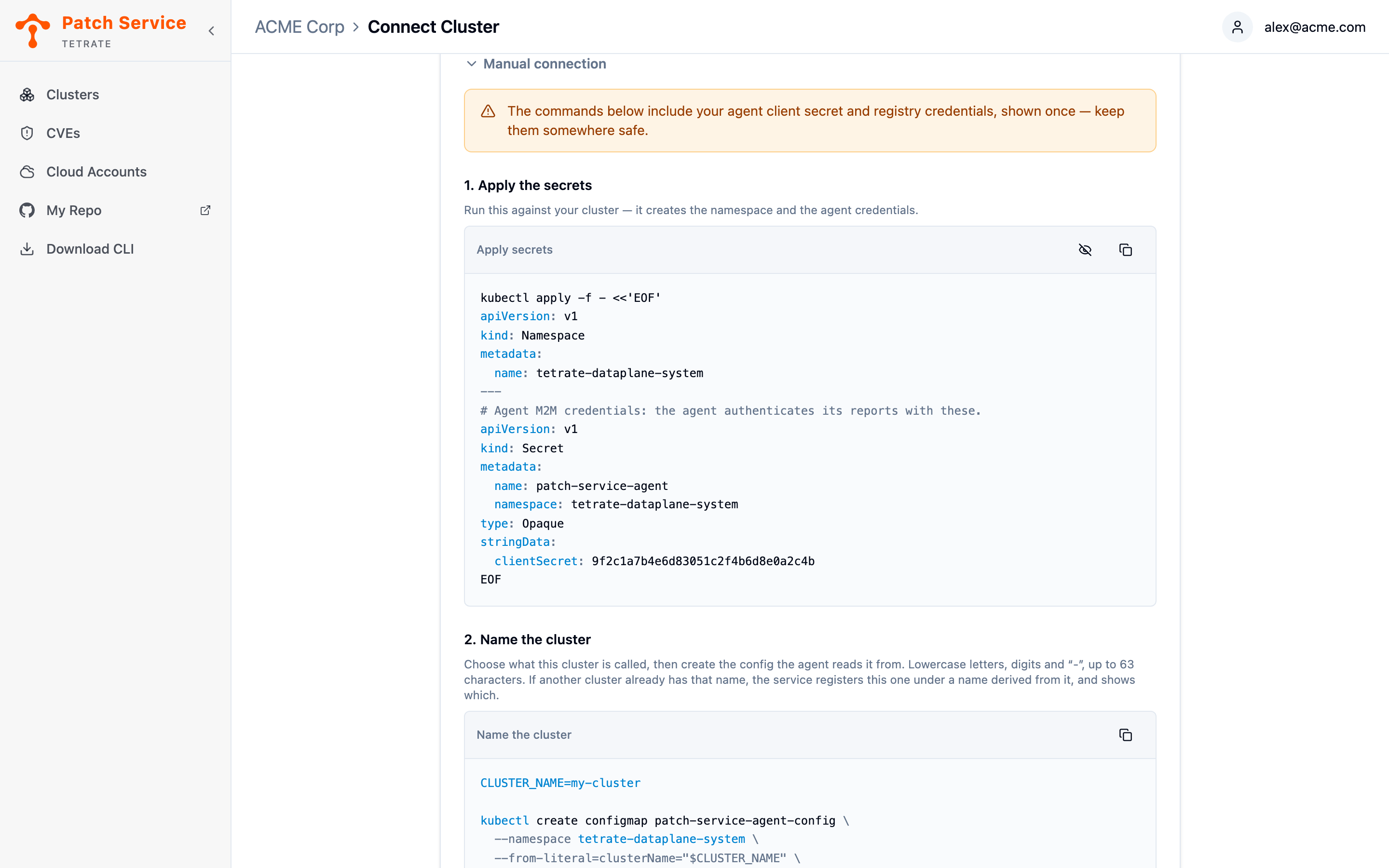
The name you set here is a request, not a guarantee. If another cluster already holds it, the service registers this one under a name derived from it, and the console shows the name it settled on, which is then the name to use everywhere.
How Onboarding Stays Safe
Both paths are built to be re-run, and both refuse to guess when a cluster's state is unclear.
- Every step is idempotent. Re-running an onboarding that failed midway is safe and converges on the same connected cluster; there is nothing to clean up first.
- The flows converge on exactly one agent per cluster. Connecting a cluster the managed data plane already manages does nothing, and a managed install onto a connected cluster adopts the running agent instead of reinstalling it, so reporting never stops.
- An agent installed by neither flow is refused rather than overwritten: the Patch Service does not replace software in your cluster that it cannot account for.
- A cluster the agent cannot identify is refused rather than registered anonymously. The agent reads its cluster's identity at startup and fails immediately if it cannot, naming the permission it needs, instead of reporting under a name that might belong to another cluster.
Next Steps
- If a connected cluster reports nothing because its Tetrate images come from your own registry, name the mirror.
- Look up every command and flag in the Tetrate CLI reference.
- Upgrade the agent on clusters connected with the CLI, the manual steps, or a cloud account; a plain re-run of
tetrate onboardskips clusters that are already connected. - When your clusters live in one cloud account, connect the AWS account and install across everything it discovers instead of onboarding from a terminal.
- Once a cluster reports, inspect what it is running: agent version, last report time, and open CVE counts per cluster.
- If your organization is on the managed data plane, work with your repository to see how connected clusters reconcile their desired state from Git.