 Tetrate Patch ServiceVersion: alpha
Viewing Pending Upgrades
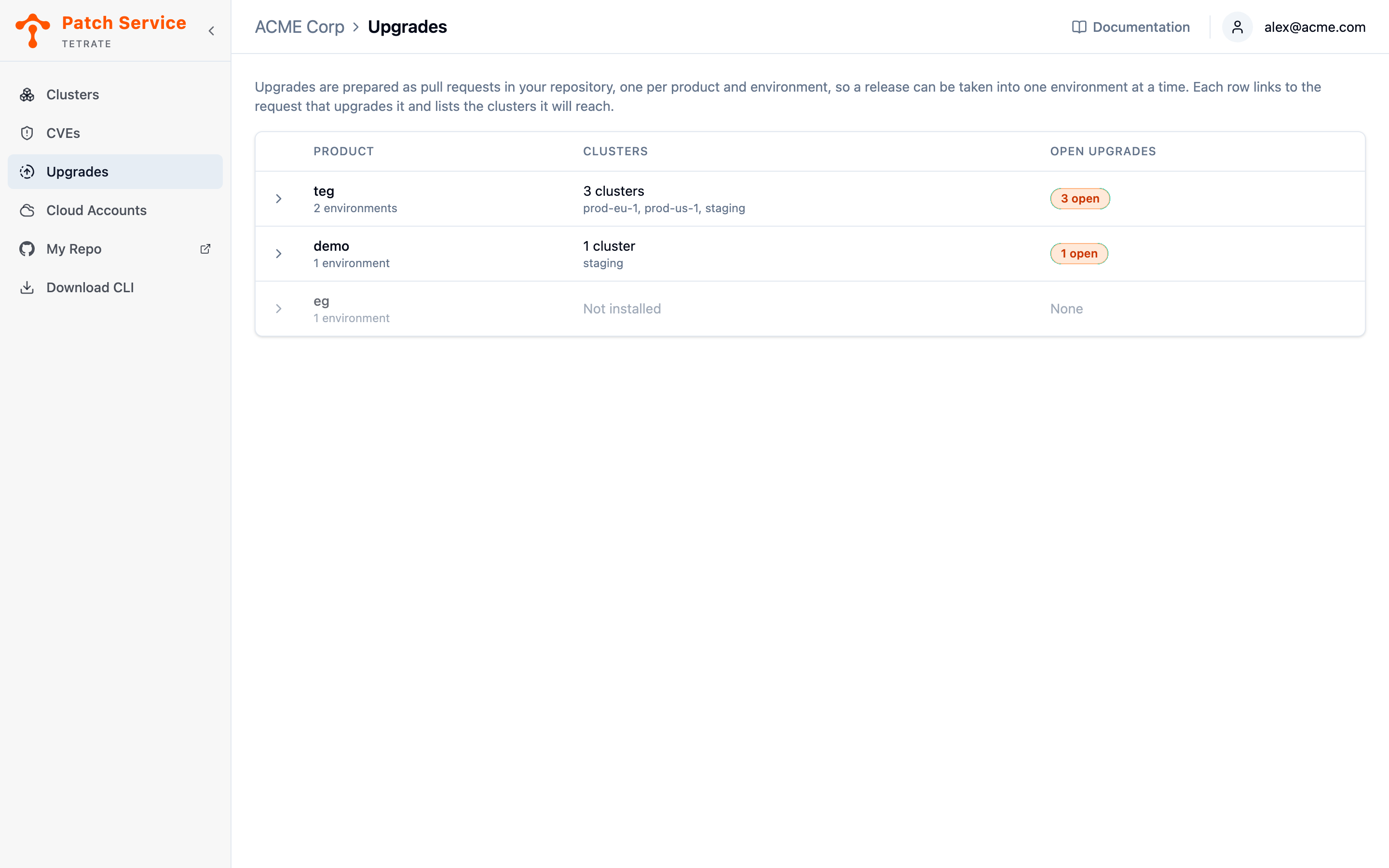
The Upgrades view is the console's answer to "what is waiting on us?". It lists your managed products rather than your clusters, because that is how an upgrade is scoped: one upgrade pull request covers a product's defaults or a single environment, never one cluster. Every row expands into the requests open against it and names the clusters merging one would reach.
The view appears in the sidebar only for organizations on the managed data plane. Without a GitOps repository there are no pull requests for it to show.
Reading the Product List
One row per product, with the products that have something waiting listed first.
| Column | What it tells you |
|---|---|
| Product | The product's name, with how many environments it deploys to beneath it. |
| Clusters | How many clusters run the product, and their names. Not installed means the product is seeded in your repository but is not running anywhere yet. |
| Open upgrades | How many pull requests are waiting across the product's defaults and all of its environments, or None. |
A product that is not installed anywhere is dimmed but still listed, because an upgrade can be open against it: the pull requests live in your repository, and the repository does not wait for a cluster to exist. It is precisely the row a list of clusters could never show you.
Expanding a Product
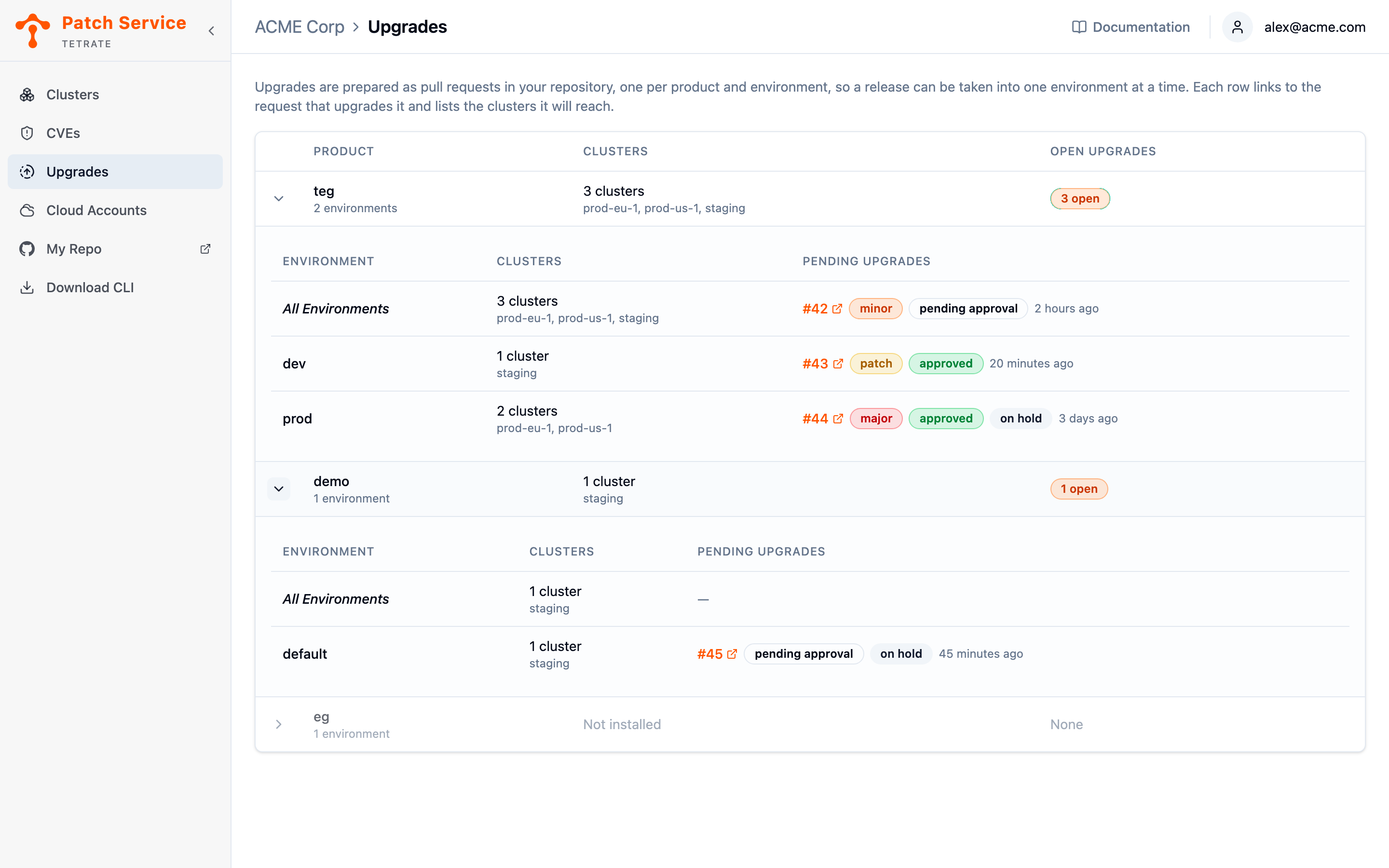
Expand a row and the product opens into one line per layer an upgrade can target:
- All Environments comes first: the product's own defaults, which every environment inherits unless it overrides the same component. A request here reaches every cluster running the product.
- Each environment follows, with only the clusters that environment runs on.
They are separate lines because they are separate pull requests, merged independently. That is what makes staging real rather than aspirational: release the dev request, watch the rollout, then release prod. A layer with nothing waiting shows a dash.
Reading a Pending Upgrade
Each pending upgrade is one line: the pull request number, linking straight to it on GitHub, followed by the badges that say what it is and where it stands, and when it last changed.
| Badge | What it means |
|---|---|
major, minor, patch | How big a version jump the request makes, on an escalating scale from yellow to red. A request carries no size badge at all when its components are not versioned as semver, a date-based version for example, because the automation does not guess at one. |
| pending approval | Nobody has released the request yet. This is the state that needs someone to act, which is why it is named rather than left blank. |
| approved | Somebody in your organization has commented /approve. |
| on hold | Somebody has commented /hold, so the request will not merge until it is lifted. |
Approval and a hold are independent, so a request can carry both: approved, and deliberately paused for a change freeze. Both are shown for that reason, since knowing whether the work of approving has already been done is exactly what someone lifting a hold needs.
The size badge can change while a request is open. A bigger release landing on it before you merge updates the request in place, and its badge moves with it, so a request opened as a patch bump can be a minor one by the time you read it.
Only the requests the automation opened appear here. Your own pull requests in the repository, a customization or a settings change, are yours to track on GitHub and are never counted as pending upgrades.
If the Patch Service cannot read your repository, a banner says so and the upgrade cells read Unknown rather than showing nothing. An empty list would claim there is nothing waiting, which is the one answer that would be wrong. The products and their clusters are still listed, because those come from the Patch Service's own records.
Where to Act
Nothing is released from this view: it links to the requests, and the release happens on the pull request itself with a comment. That is deliberate. Your accounts hold read access to the repository, and the comment is the signal the seeded automation acts on; see Approving Changes.
This view is about what is still open, so a merged request leaves it straight away. Whether the upgrade actually reached your clusters is a different question, answered by a different source: the Clusters view shows the new versions once the agent reports them running. An upgrade that merged but has not rolled out is therefore gone from here and still visibly old there, which is the honest pair of answers rather than one optimistic one.
Next Steps
- Receive managed upgrades for what an upgrade pull request contains and how to stage one across environments.
- Approve changes for the commands that release a request and the three checks that gate it.
- View your clusters to confirm the new images running after a rollout, which is what makes an upgrade done.