 Tetrate Patch ServiceVersion: alpha
Receiving and Viewing Upgrades
With managed upgrades, an upgrade is a pull request in your repository that moves pinned versions. A workflow notices the release and prepares the change. You decide when each environment takes it.
This page covers how those requests arrive, where the console shows them, and what proves an upgrade reached your clusters.
How Upgrade Pull Requests Arrive
The upgrade workflow in your repository runs once a day. It compares every versions file the manifest names with the release catalog, and opens an upgrade pull request for each environment that is behind. You can also run it at any time from your repository's Actions tab: open Tetrate upgrades and click Run workflow.
Each request:
- Covers one environment.
devandprodget separate requests, so you can take a release into one and watch it before the other. - Changes only versions. The image pins in that environment's versions file, and the chart version where your deploy tool reads it. Your own configuration never appears in one.
- Says what it moves. Its description lists each component with the versions it moves between.
- Stays current. If a newer release lands before you merge, the same request is updated. If someone brings the file up to date another way, the request closes itself.
- Carries labels you can filter on in GitHub:
| Label | What it tells you |
|---|---|
automated-version-bump | The request was opened by the upgrade workflow, not by a person. |
<product>/<environment>, such as teg/prod | The environment it upgrades. |
upgrade/major, upgrade/minor, upgrade/patch | How big the version jump is. A request whose versions do not follow semver, such as a date-based version, gets none. |
The workflow only opens pull requests. It never pushes to your default branch.
Reviewing and Merging
How a request is released depends on the repository:
- Your own repository: review and merge it on GitHub like any other pull request, under your branch protection, required reviews and checks. The console shows the request and links to it.
- A repository Tetrate provisions: release it with a command,
/approve, as a comment or from the console. See Approving and Releasing Changes.
GitHub does not start other workflows on a pull request opened with a workflow's built-in token. If your repository requires checks of its own before merging, give the upgrade workflow a token to open requests with. Add pr-token: ${{ secrets.<YOUR_SECRET> }} to the with: of its upgrade step, where the secret is a fine-grained personal access token or GitHub App token with contents and pull requests write access to the repository.
Seeing What Is Waiting
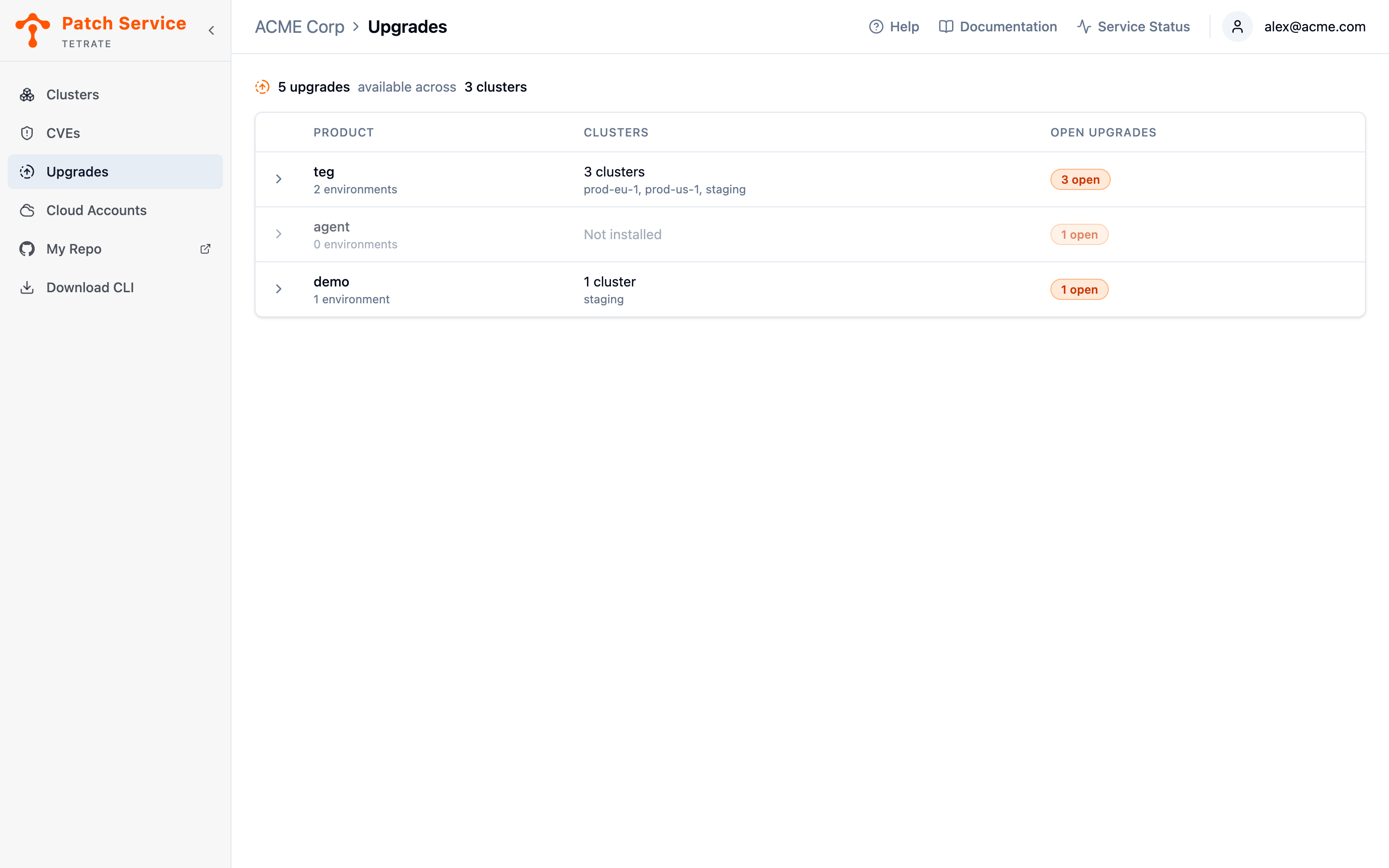
The Upgrades view answers "what is waiting on us?". It lists your products rather than your clusters, because that is how an upgrade is scoped: a request covers one environment of one product, which can reach several clusters.
Above the list, a bar names the repository upgrades are proposed to, with a link to it.
Reading the Product List
One row per product, with the products that have something waiting listed first.
| Column | What it tells you |
|---|---|
| Product | The product's name, with how many environments it deploys to. |
| Clusters | The clusters running the product. Not installed means the repository declares it, but no agent reports it running yet. |
| Open upgrades | How many requests are waiting across its environments, or None. |
Expanding a Product
Expand a row to see the product's environments, each with the clusters it runs on and the requests open against it. The first line, All Environments, lists every cluster running the product.
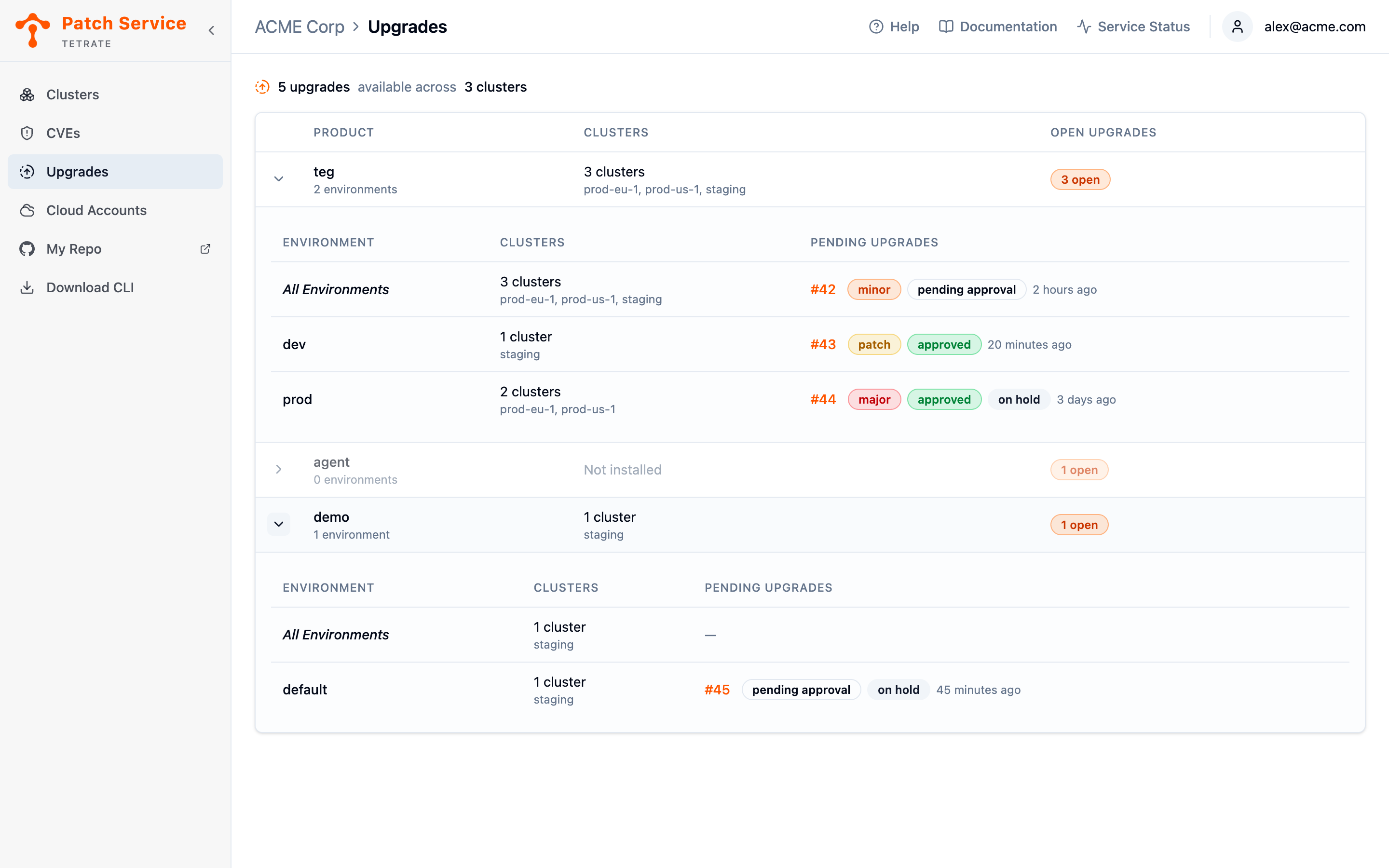
Each request is one line: its number, badges for the size of the jump, and when it last changed. In a repository Tetrate provisions, the line also says whether the request is pending approval, approved or on hold.
Click the number to open the request in a panel with its description, checks, changes and conversation. For your own repository, the panel links to the request on GitHub, where you merge it. For a provisioned repository, it also has the buttons that release it.
If Patch Service cannot read your repository, a banner says so, and nothing is listed as waiting. That does not mean nothing is.
Watching the Rollout
A merged request leaves the Upgrades view straight away. Whether the upgrade reached your clusters is answered by the agent:
- Your deploy tool applies the merge: Argo CD or Flux on its next sync, or your pipeline on its next run.
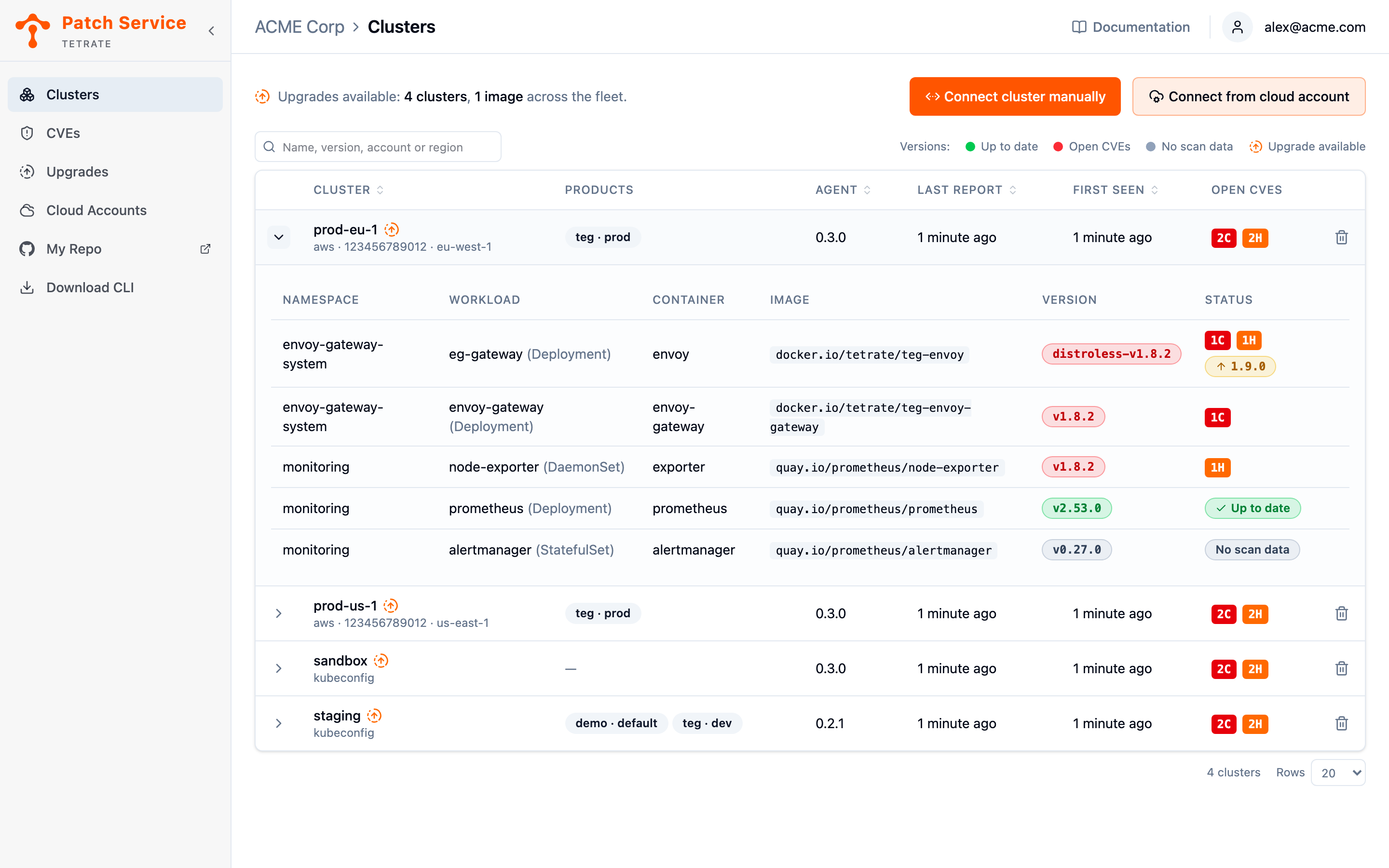
- The agent reports the new images in its next snapshot. The containers in the Clusters view show the new versions, and their Upgrade available badges clear.
- The next CVE scan resolves the old image's findings.
Until the agent reports the new images, the console keeps showing the old version. A rollout that merged but never happened stays visible.
Next Steps
- Hold an upgrade back: one request, one image, or one environment's chart.
- Remediate vulnerabilities to see how merging these requests fixes actionable findings.
- View your clusters to confirm the new images running after a rollout.
- Read Your Repository's Files for what a request changes.