 Tetrate Service BridgeVersion: next
Configure OIDC using tctl
User authentication for the management plane is commonly configured through ManagementPlane CR or Helm values. In some cases, such as when using a Hosted Management Plane, it's not possible to edit the ManagementPlane settings directly.
This document explains how to manage user authentication using tctl or a TSB API to supply the OIDC configuration. Once this is configured, users will be able to log in to the TSB Management Plane UI using credentials from an OIDC provider:
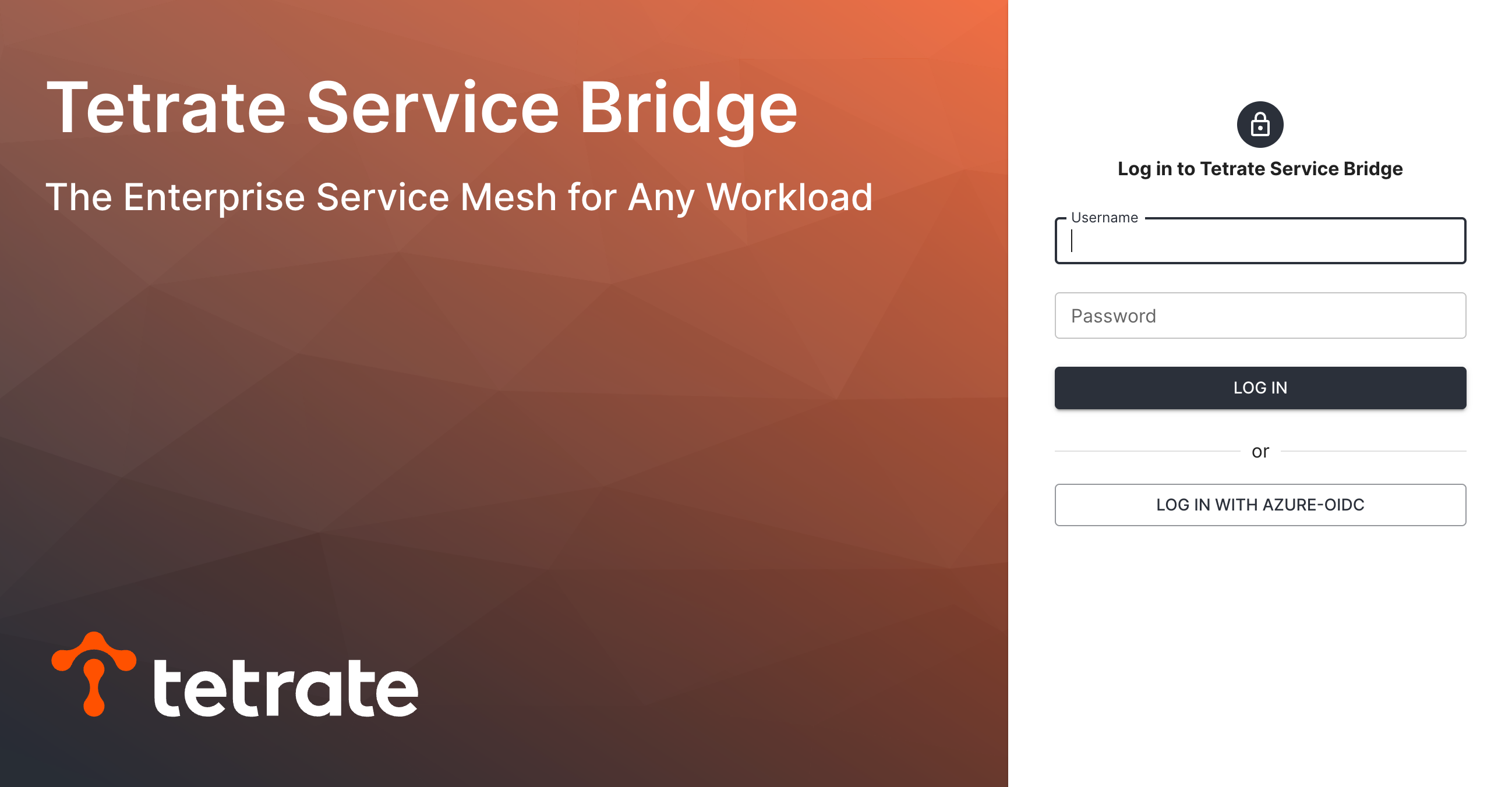 OIDC Login - Log in with AZURE-OIDC OIDC Login - Log in with AZURE-OIDC |
|---|
Overview
The Management Plane CR contains an OIDCSettings section where an administrator can define the IdP settings for OIDC.
You can also provide these settings using the TSB OIDC resource. This resource can be managed using the TSB API, or most conveniently, using the tctl on the oidc resource type.
Worked Example
In this example, we'll configure Azure OIDC connect and add users to the TSB management plane.
Set up Azure OIDC connect
Follow the instructions here Azure AD as the Identity Provider to create and configure a TSB app registration:
- Create an App Registration called 'TSB'. Set the 'callback URI' to be https://tsb-address/iam/v2/oidc/azure-oidc/callback
- Keep a copy of the 'TSB Client Secret', as you'll need it later
- Add a 'web' platform, using the same 'callback URI' (Authentication > Add Redirect URI)
- Optional: Enable the public workflow to allow for API (tctl) access for OIDC users (Authentication > Settings)
Configure the TSB Management Plane
Construct an
OIDCconfiguration for your identity provider, similar to the following.- The
clientIdis taken from the Azure App registration Application (client) ID - The
configurationUrifrom the Overview > Endpoints > OpenID Connect metadata document - The
redirectUriis the value used above - The
secretis the base-64 encoded value of the TSB Client Secret provided by Azure
azure-oidc.yamlapiVersion: api.tsb.tetrate.io/v2
kind: OIDC
metadata:
name: azure-oidc
organization: tetrate
spec:
config:
clientId: 2955a6da-415e-963b-5945b68512c7
providerConfig:
dynamic:
configurationUri: https://login.microsoftonline.com/1076231c-42f2-8c33-aa8680e81ea8/v2.0/.well-known/openid-configuration
redirectUri: https://tsb-address/iam/v2/oidc/azure-oidc/callback
scopes:
- email
- profile
- openid
secret: QUJDREVGR0hJSktMTU5PUFFSU1RVV1hZWgo=
description: Provide OIDC authentication against the Azure endpoint
displayName: Azure OIDCPassword EncodingThe password
secretmust be provided using base64 encoding. It is 'write-only', meaning that it cannot be read using the TSB APIs.- The
Provide the Configuration
Apply the configuration as follows:
tctl apply -f azure-oidc.yamlCheck the configuration and status:
# List OIDC settings
tctl get oidc

# Retrieve configuration (note that the secret is not returned)
tctl get oidc azure-oidc -o yaml

# Check status
tctl status oidc azure-oidc
tctl status oidc azure-oidc -o yaml
Create Users
This process does not support the
teamsyncservice to copy users from a remote IdP. Instead, you should manually add each supported user to TSB.The
metadata.namemust match the 'Object ID' value in the directory for each user. All other values (loginName,firstName,lastName,displayName,email) can follow your internal naming policy:users.yamlapiVersion: api.tsb.tetrate.io/v2
kind: User
metadata:
name: 8f51daad-405b-9a7d-e9615f26a262
organization: tetrate
spec:
loginName: user1
firstName: User1
lastName: User1
displayName: User1 (Azure OIDC)
email: user1@tetrate.io
---
apiVersion: api.tsb.tetrate.io/v2
kind: User
metadata:
name: 13a0c492-4e81-a2b1-560218d06b27
organization: tetrate
spec:
loginName: user2
firstName: User2
lastName: User2
displayName: User2 (Azure OIDC)
email: user2@tetrate.ioApply these as follows:
tctl apply -f users.yamlYou can list the users in the TSB user database as follows:
tctl get usersCreate a Team
The users you have provided must be granted permissions. In this example, we'll assign them to a team (azure-users) and grant them full access to the Tenant named default:
azure-users.yamlapiVersion: api.tsb.tetrate.io/v2
kind: Team
metadata:
name: azure-users
organization: tetrate
spec:
members:
- organizations/tetrate/users/8f51daad-405b-9a7d-e9615f26a262
- organizations/tetrate/users/13a0c492-4e81-a2b1-560218d06b27
displayName: "Azure OIDC Users"
description: "Users who log in using OIDC authentication against the Azure endpoint"Apply this as follows:
tctl apply -f azure-users.yaml
organizations/tetrate/teams/azure-users created
Retrieve the content as follows:
tctl get team azure-users -o yamlGrant permissions
In this example, we will grant read permissions across the entire system, and edit permissions to the
organizations/tetrate/tenants/defaulttenant:accessbindings.yamlapiVersion: rbac.tsb.tetrate.io/v2
kind: AccessBindings
metadata:
fqn: organizations/tetrate/tenants/default
spec:
allow:
- role: rbac/tenant-operator
subjects:
- team: organizations/tetrate/teams/azure-users
---
apiVersion: rbac.tsb.tetrate.io/v2
kind: AccessBindings
metadata:
fqn: organizations/tetrate
spec:
allow:
- role: rbac/reader
subjects:
- team: organizations/tetrate/teams/azure-usersApply these permissions as follows:
tctl apply -f accessbindings.yaml
organizations/tetrate/tenants/default created
organizations/tetrate created
For more information, refer to the Users, Roles and Permissions documentation.